2. First Steps: Navigating the YC.World Interface
3. Search Mastery: How to Locate Entities Across 82 Jurisdictions
4. Analysing Search Results: Leveraging Filters for Precise Insight
5. Visualising Connections: Mastering the Graph Tool
6. Project Management: Organising and Saving Your Investigations
7. List View: Structuring Complex Corporate Networks for Analysis
8. YC.World API: Automating Corporate Research within Your Workflow
List View: Structuring Complex Corporate Networks for Analysis
25 September 2026
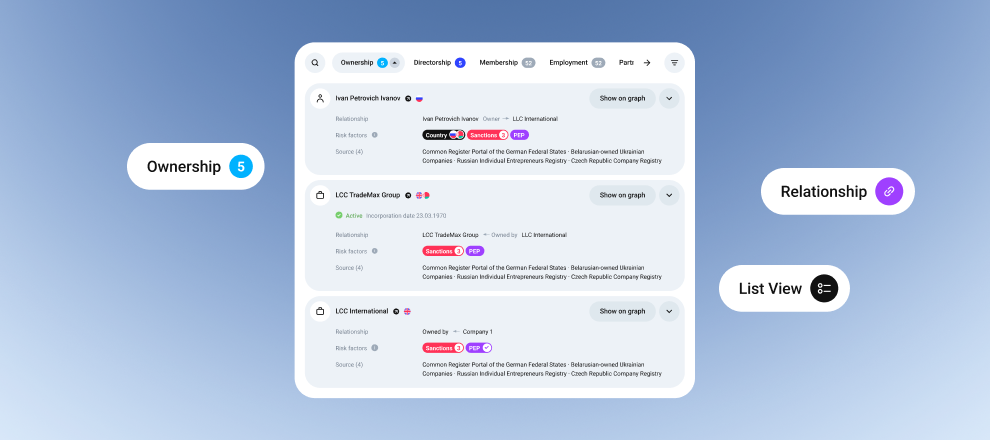
After analysing relationships on the graph and expanding the relevant branches, you can change the display format with one click and view the connections as a structured list. To do this, select List View in the left-hand side menu.
In practice, this is the same information shown on the graph, but organised into text blocks grouped by type. This format makes it easier to quickly scan names, dates, and figures without moving visual nodes around the workspace.
List View is particularly useful when the graph contains hundreds of objects and you need a more structured, table-like view for analysis.
Sections and their meaning: Where to find the key information
All information in List View is divided into tabs. The number next to each tab indicates how many records were found in that specific category:
- Ownership: This is the first section to check when you need to identify the actual owners. If you are viewing a legal entity’s profile, this section will show its founders and shareholders. If you are analysing an individual, the tab will show which companies they own or in which they appear as a beneficial owner.
- Other sections: management, employment, associated address, mentions, associated phone number, succession and other types of connections.
When to use list view
Although the graph is essential for network visualisation, there are situations where a text-based structure provides a more practical view. We recommend switching to List View when you need:
1. Analysis of a complex company structure
When the number of subsidiaries and parent entities reaches dozens, List View allows you to see them all in a structured list. This keeps the analysis clear, without the distraction of lines and icons.
2. Instant sanctions and risk screening
Instead of clicking each node on the graph, you can simply scroll through the page. Each object in the list already includes its risk markers and sanctions labels. This is the fastest way to identify a high-risk individual or entity within a large set of results.
3. Verification and source comparison
If you need to verify data for legal or evidential purposes, List View is more convenient. Each record contains a direct link to the primary source, allowing you to verify information from different international registers in seconds.
➡︎ Tip: use List View as the final verification stage before preparing a report.
FAQs
Are filters preserved when switching from Graph View to List View?
Yes. All settings applied to the graph, such as filtering by country or by the historical status of connections, remain active in List View.
How can I determine whether a connection is current?
In the list, each connection includes its type and, where available in the register, its validity period. This makes it easier to distinguish current owners from former ones.
What does a large number of records in the Ownership section mean for an individual?
It is a direct indicator of the person’s influence or potential involvement in complex corporate structures. A large number of companies founded by one individual often requires additional screening for signs of transit or intermediary structures.