2. First Steps: Navigating the YC.World Interface
3. Search Mastery: How to Locate Entities Across 82 Jurisdictions
4. Analysing Search Results: Leveraging Filters for Precise Insight
5. Visualising Connections: Mastering the Graph Tool
6. Project Management: Organising and Saving Your Investigations
7. List View: Structuring Complex Corporate Networks for Analysis
8. YC.World API: Automating Corporate Research within Your Workflow
Visualising Connections: Mastering the Graph Tool
25 September 2026
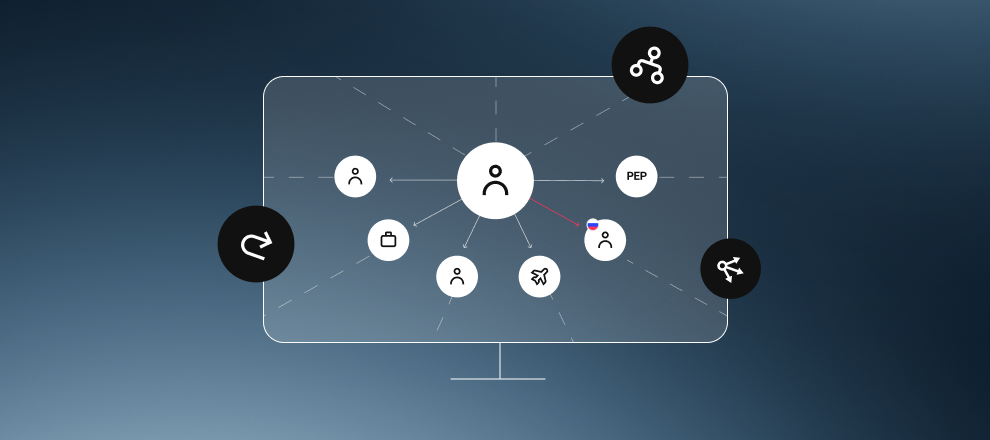
The YC.World graph enables you to examine a company’s connections, related individuals and ownership structure, identify hidden beneficial owners and assess risk-related links almost instantly.
This guide explains how to work with the tool in a structured and effective way.
What is the graph tool?
The YC.World graph is an interactive visual map that transforms data from official registers into a clear and structured network of relationships. It automatically draws connections between companies, their owners, assets and events, allowing you to grasp the overall structure at a glance.
You can open the visualisation directly from the search results or from the profile of any company, individual or asset, which then becomes the root node. The system automatically displays the object’s immediate network, meaning the related entities connected to it. From there, you can expand the network further and analyse connections across multiple levels.
The graph can be displayed in several formats, including static, tree, hierarchical and circular view.
Settings tailored to your investigation needs
Every investigation is unique, so relationship visualisation must remain flexible. In the upper-right corner, you will find the settings menu, where you can:
- Display full entity names and ownership percentages in business interests.
- Highlight historical connections, including links that are no longer active yet remain relevant to the analysis.
- Configure filters by entity type, for example, by dimming secondary connections in the background so that you can focus on priority links.
Navigation: manage the data in one click
Working with a large graph should remain clear and operationally convenient. The main rules for using the YC.World graph are as follows:1. Zooming
Use the mouse wheel or the slider in the lower-right corner.
2. Moving the canvas
Click on an empty area with the left mouse button and drag the entire workspace.
3. Drilling into details
A single click on an entity opens its full profile in the left-hand side menu. A double click expands all connections associated with that entity.
4. View modes
You can switch instantly between the graph and list views. If it is more convenient to work in a table-like format, select List, and the system will organise all connections in text form while preserving the investigation focus.
FAQs
How can I change the graph layout?
In the upper graph panel, you can select the layout that best suits your work: static, tree-based, hierarchical or circular.
Can I hide the side menu?
Yes. The left-hand menu can be collapsed with one click to free up space for visual analysis or for saving the result.
What do the symbols inside the circles on the graph mean?
Each symbol represents a specific entity type: a building denotes a legal entity, a person silhouette denotes an individual, and an aircraft or an anchor denotes a transport asset. This helps you quickly read the network’s structure.
How many entities can I open at the same time?
You can set a limit of up to 500 entities in the settings. This is the optimal number for maintaining performance and keeping the visualisation clear.