2. First Steps: Navigating the YC.World Interface
3. Search Mastery: How to Locate Entities Across 82 Jurisdictions
4. Analysing Search Results: Leveraging Filters for Precise Insight
5. Visualising Connections: Mastering the Graph Tool
6. Project Management: Organising and Saving Your Investigations
7. List View: Structuring Complex Corporate Networks for Analysis
8. YC.World API: Automating Corporate Research within Your Workflow
Project Management: Organising and Saving Your Investigations
25 September 2026
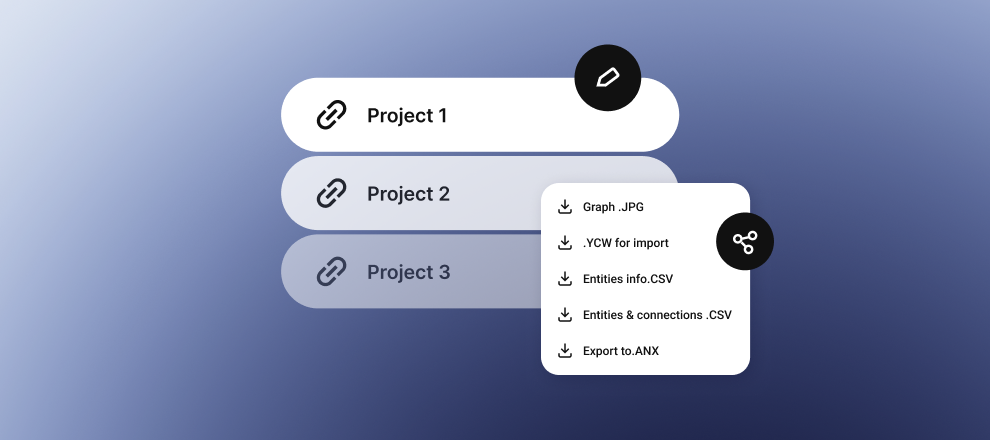
Projects in YC.World serve as your personal workspace for analysing a specific case. Creating a YC.World project enables you to review data, model scenarios, add your own findings and preserve the full history of your investigations in a secure environment.
Project management: organisation and shared access
All your cases are organised into tabs for faster navigation:
- All Projects: the complete list of your investigations.
- My Projects: cases created by you personally.
- Shared Access: investigations that colleagues have shared with you.
Teamwork: You can grant another user access to your project by email. The colleague will be able to view your YC.World graphs, save them or import them for further analysis.
Grouping and customisation: how to work with YC.World graphs
For complex corporate networks, a standard set of individual links is not sufficient. This is why YC.World graph functionality includes a powerful grouping tool.
Why group entities
- Manual deduplication: if you are confident that two entities on the graph refer to the same individual, even where there is no official confirmation, you can simply drag one object onto the other.
- Creating analytical groups: combine persons involved in a scheme or entities belonging to the same holding structure into a single group. You can collapse or expand the group and analyse its connections as one consolidated unit.
Configuring connections
Manually created connections can be fully customised:
- Name and description: provide a detailed description of the relationship, for example, “probable beneficial owner”.
- Colour: mark high-risk connections in red and reliable connections in green.
- Timeline: specify the start and end dates of the connection to analyse how the relationship evolved over time.
Export and reporting
Relationship analysis in projects usually concludes with the preparation of a report. You can export the graph and profile in several formats, including PDF, JPG, CSV and ANX.
PDF report features:
- The report includes all created entities and connections.
- Entity groups are displayed in a structured format, with visual indentation, making it clear which entities belong to each group.
- For each company or individual, the report provides a list of risk factors.
FAQs
Can I permanently delete a project?
Yes. You can edit project names, create copies or delete projects you no longer need through the control panel.
How can I filter a large number of projects?
Use the available sorting filters: alphabetically, by most recent change date, or by creation date.
Can other users see my custom entities?
Only if you choose to share the project. All manually created objects and edits remain confidential and protected.